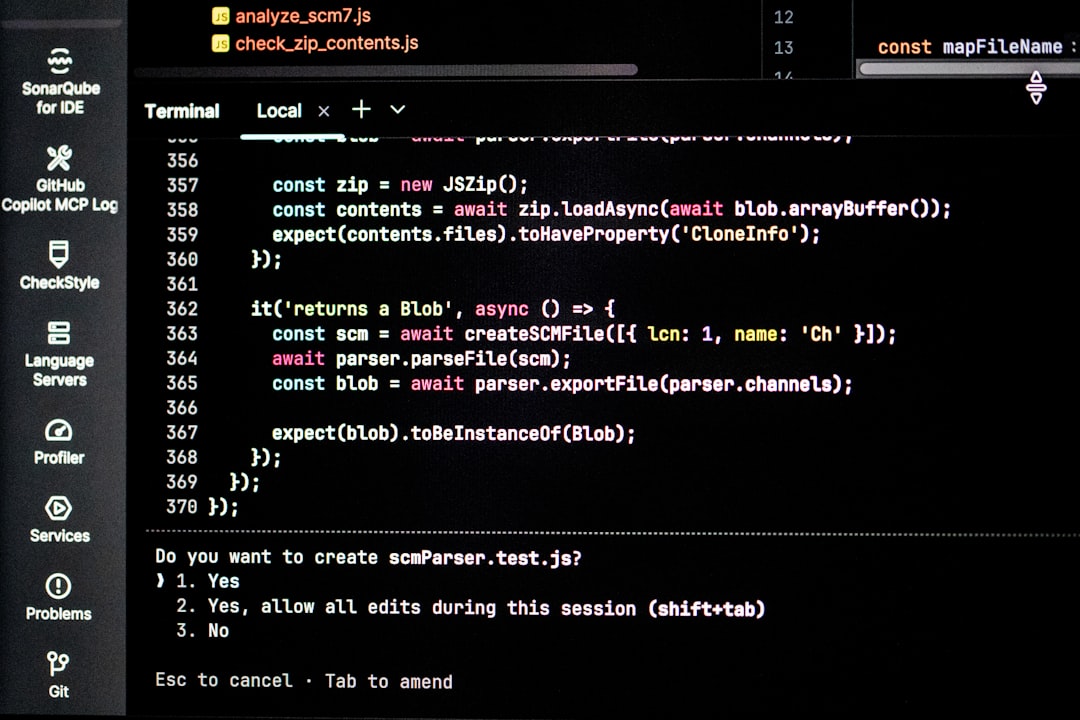
Why Developers Are Ditching VS Code for Cursor
Why Every Developer Is Talking About the Cursor IDE Right Now
Cursor IDE is an AI-native code editor built as a fork of VS Code — with large language models integrated at every layer, not bolted on as an afterthought.
Quick answer for developers evaluating Cursor:
| What you want to know | The short answer |
|---|---|
| What is it? | A VS Code fork with deep AI integration — Tab autocomplete, inline editing, and autonomous agents |
| Who makes it? | Anysphere, founded at MIT in 2022 |
| How much does it cost? | Free (2,000 completions), Pro ($20/mo), Business ($40/mo) |
| Is it worth switching from VS Code? | Yes — especially if you want AI that understands your whole codebase |
| How do I get it? | Download at cursor.com |
The numbers tell the story fast. Cursor crossed $100 million in annual recurring revenue in January 2025. By early 2026, it had surpassed $3 billion ARR and a $29.3 billion valuation — all with a team of roughly 300 people and essentially zero traditional marketing spend.
Developers aren’t just trying Cursor. They’re staying. One company saw adoption jump from single digits to over 80% of engineers. Fortune 500 teams are standardizing on it. And a growing wave of developers are publicly saying it’s the most useful AI tool they pay for.
The reason is simple: Cursor doesn’t just suggest the next line. It understands your entire codebase, edits across multiple files, and — with its newest agent features — can plan, write, test, and open a pull request while you’re doing something else.
This review breaks down exactly what Cursor offers, how its AI features work in practice, and whether it’s worth making the switch.
Written by RVCJ Editorial, the editorial team at Remote Vibe Coding Jobs — we cover AI-assisted development tools including Cursor IDE, GitHub Copilot, Windsurf, and Claude Code to help developers land remote roles at async-first engineering teams. We’ve tracked Cursor’s evolution from early autocomplete tool to full agentic IDE, and the workflow shifts that come with it.
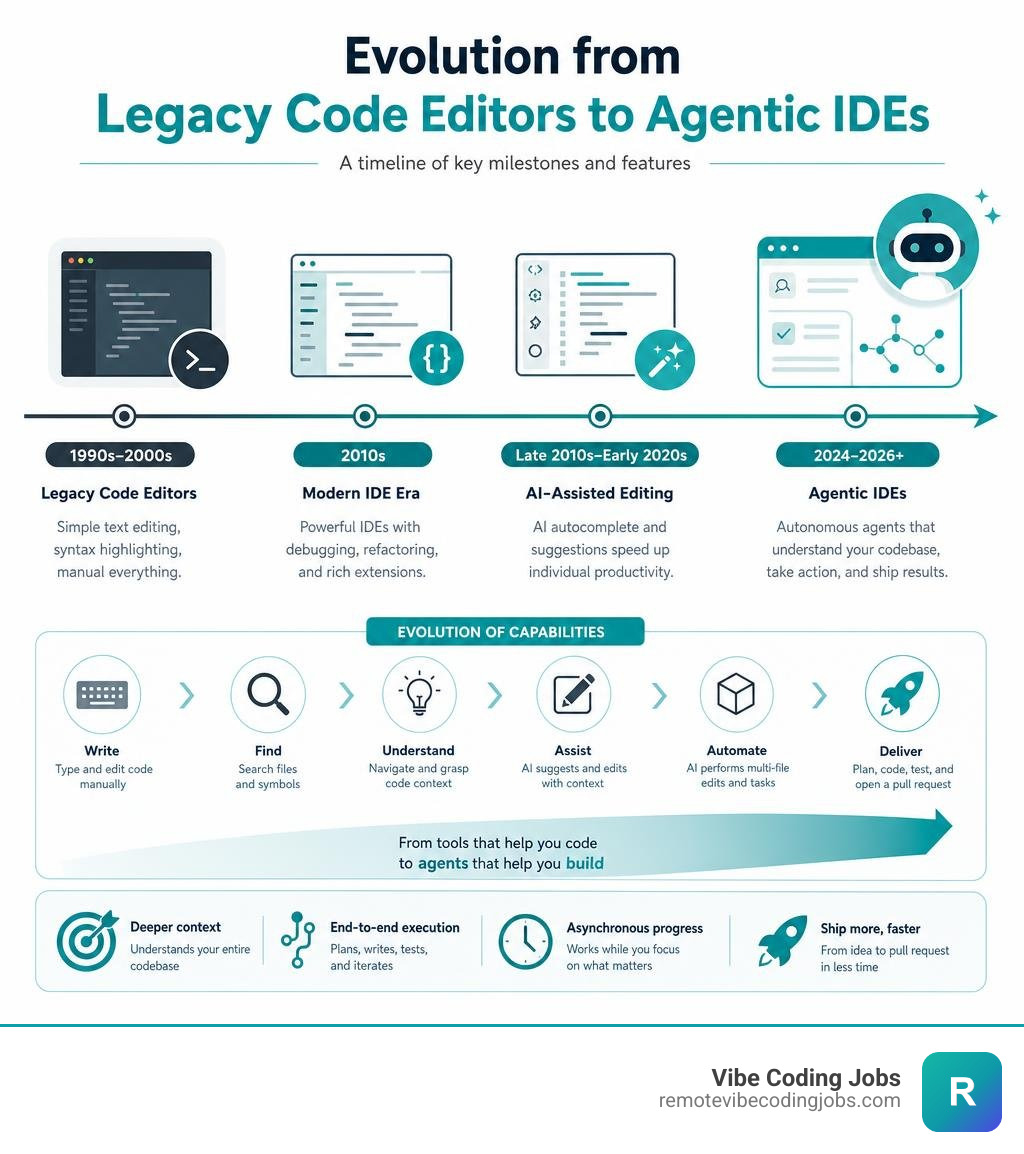
Cursor ide terms simplified:
Why the Cursor IDE Has Redefined Modern Software Development

For years, code editors treated AI like a fancy clip-on reading light. You had your editor (usually VS Code), and you installed an extension (like GitHub Copilot) that sat in a sidebar or offered inline suggestions. It was a classic “two-screen” experience: you write code, the AI sits in its corner, and you copy-paste prompts back and forth.
The cursor ide changed the game by flipping the script. Instead of bolting AI onto a legacy editor, the team at Anysphere built an AI-native workspace. They realized that for an AI to be truly useful, it needs deep, low-latency access to the editor’s internals—every keystroke, file tab, terminal output, and linter error.
At the core of this magic is codebase indexing. When you open a project in Cursor, it builds a semantic index of your entire codebase in the background. This index doesn’t just look for keyword matches; it understands the relationships between your files, functions, and database schemas.
With semantic search powered by IDE – Cursor AI , you can ask questions like “Where do we handle JWT validation in our auth middleware?” and Cursor will pinpoint the exact files, even if the word “JWT” isn’t explicitly in the file name. It represents a massive leap forward from the text-searching of yesterday.
Rebuilding the Editor from the Ground Up
To understand why Cursor feels so much faster and more cohesive than a standard extension, we have to look at its architecture. Cursor is a direct fork of VS Code. This was a massive strategic gamble by its parent company, Anysphere.
By forking the editor rather than writing an extension, Cursor’s engineers gained the freedom to rewrite the UI layer. They could modify how suggestions are rendered on-screen, how diffs are presented, and how the editor manages background context. As highlighted in Cursor IDE: The Complete Guide to AI-Powered Development | Jose Nobile , this fork architecture allows Cursor to run a “Shadow Workspace” in the background. This shadow workspace lets background AI agents request lints and compile code without interrupting your active typing session.
Migrating from VS Code to the Cursor IDE
If you are worried about losing your carefully curated developer setup, take a deep breath. Because Cursor is built on VS Code, migrating is a one-click affair.
When you first open Cursor after downloading it from Cursor · Download , it asks if you want to import your settings. Within seconds, all your VS Code extensions, custom keyboard shortcuts, themes, and workspace configurations are ported over. It feels exactly like your old editor, but with a supercharged engine under the hood. You don’t have to relearn how to navigate your files or lose your favorite vim keybindings—everything just works.
Core AI Features: From Autocomplete to Autonomous Agents
To get the most out of Cursor, it helps to understand its four primary interaction surfaces. Each surface is designed for a different level of AI involvement, moving from simple autocomplete to full autonomy.
| Feature | Best For | How to Trigger | Key Model |
|---|---|---|---|
| Cursor Tab | Next-word and multi-line autocomplete | Just start typing | Custom cursor-small (sub-200ms) |
| Cmd+K (Inline Edit) | Targeted, single-file edits | Cmd+K / Ctrl+K |
Claude 3.5 Sonnet / GPT-4o |
| AI Chat | Codebase Q&A and architecture planning | Cmd+L / Ctrl+L |
Multi-model picker |
| Composer (Agent) | Multi-file features and background execution | Cmd+I / Ctrl+I |
Composer 2.5 / Claude Sonnet |
This multi-tiered approach is what makes Cursor so versatile. As discussed in our guide on Vibe Coder Tools: Copilot & Cursor, you aren’t forced into a binary “AI on or off” choice. You can let the AI handle the repetitive boilerplate while you maintain tight control over the architectural decisions.
Next-Gen Autocomplete and Inline Editing
Standard autocomplete tools usually look at the line you are currently typing. Cursor Tab, powered by the highly optimized cursor-small model, looks at your recent edits, your linter errors, and files you have open in other tabs.
With sub-200ms latency, it doesn’t just suggest the end of your current sentence; it predicts your next edit. If you modify a function signature, Cursor Tab will often anticipate that you need to update the function calls in your test files, offering a multi-line prediction before you even open those files.
When you need to make a targeted change, you highlight a block of code and hit Cmd+K (or Ctrl+K on Windows). You type what you want in natural language—for example, “Convert this raw SQL query to use parameterized inputs to prevent SQL injection.” Cursor performs the edit directly in your file, presenting a clean green-and-red diff preview. You can accept the change with Tab or reject it with Esc, giving you absolute control over what enters your commit history.
Multi-File Editing and Agent Mode
While inline editing is great for single files, real-world development usually involves touching multiple files at once. This is where Composer and Agent Mode come into play.
By pressing Cmd+I, you open Cursor’s Composer. In May 2026, Cursor released Composer 2.5, which dramatically improved the editor’s ability to handle long-running, complex coding tasks. In Agent Mode, Cursor doesn’t just write code; it acts. It can:
- Create new files and directories.
- Search your codebase for dependencies.
- Run terminal commands (like installing NPM packages or running tests).
- Read linter errors and automatically iterate on a fix until the tests pass.
With the release of Cursor 3, as detailed in Meet the new Cursor · Cursor , agent management has become a first-class citizen. You can run multiple agents in parallel, hand off tasks between your local machine and secure cloud environments, and watch them work in real-time. If an agent goes down the wrong path, you can use the built-in “Restore Checkpoint” feature to instantly roll back your codebase to a clean state.
Context Engineering and Multi-Model Architecture

An AI model is only as smart as the context you feed it. If you ask a generic question, you get a generic answer. Cursor solves this with its incredibly intuitive @ context system, which lets you explicitly point the AI to the exact information it needs.
We dive deep into this workflow in our tutorial on Vibe Coding with Cursor Tutorial: Unleash Your AI Coding Potential. By learning how to curate the context you feed the AI, you can prevent hallucinations and ensure the generated code matches your project’s specific standards.
Mastering Context with @ Symbols and Rules
When chatting with Cursor or using inline edits, you can type @ to open a context menu. This lets you reference:
- @Files: Point the AI to specific files in your workspace.
- @Folders: Include entire directories for structural context.
- @Codebase: Trigger a semantic search across your entire repository.
- @Docs: Pull in external documentation. If you are working with a fast-evolving framework, you can paste the URL of its documentation, and Cursor will scrape and index it so the AI always uses the latest API specs.
To enforce team-wide coding standards, you can use .cursorrules files. By placing a .cursorrules file in your project’s root directory (or using the .cursor/rules/ directory for modular rules), you can give the AI explicit instructions. For example, you can write: “Always use TypeScript, prefer functional components over class components, skip conversational filler in responses, and never suggest deprecated libraries.” Every time Cursor generates code for your project, it will strictly adhere to these guidelines.
To keep the AI focused and save precious context window space, you can also set up a .cursorignore file. This prevents the editor from indexing large, irrelevant directories like build artifacts, temporary logs, or massive asset folders.
Leveraging the Multi-Model Architecture
One of Cursor’s greatest strengths is its model flexibility. Unlike editors locked into a single ecosystem, Cursor allows you to switch between the world’s best models on the fly.
Depending on your task, you can choose:
- Claude 3.5 Sonnet: The gold standard for complex logic, architectural planning, and clean code generation.
- GPT-4o / GPT-4.1: Excellent for rapid prototyping and general debugging.
- Gemini 2.5 Pro: Ideal for massive refactoring tasks thanks to its enormous context window.
- cursor-small: The lightning-fast custom model optimized for instant tab completions.
You can even bring your own API keys if you want to optimize your token economics or run custom models, ensuring you never face vendor lock-in.
Advanced Workflows and Security Best Practices
As AI-assisted development becomes the industry norm, workflows are shifting from writing code to reviewing and orchestrating code. However, letting an AI run commands and edit files on your local machine comes with real security risks.
In our overview of the Best AI Coding Tools for Vibe Coders 2026, we highlight how the most productive developers balance speed with rigorous security and testing protocols.
Optimizing the Cursor IDE for Large-Scale Codebases
When working on large repositories, treating the AI like a magic wand that can solve everything in one prompt is a recipe for broken builds. Experienced developers treat Cursor like a highly capable junior engineer.
To maintain high code quality at scale, we recommend the following workflow:
- Spec-Driven Development: Before prompting the AI to write code, use Cursor Chat to write a clear technical specification or design document. Commit this document to your repository so the AI can reference it.
- Write Tests First: Create one or two integration tests that define the expected behavior of the new feature.
- Task Breakdown: Break the feature into small, manageable steps. Use systems like the Cursor adaptation of the GSD (Get Shit Done) framework, available at rmindel/gsd-for-cursor , to map your codebase and execute tasks systematically.
- Agent Execution: Let the Agent implement the code and run the tests. If a test fails, the agent can read the terminal output and fix the bug autonomously.
Securing Your AI-Assisted Development Environment
Because Cursor’s Agent Mode can run terminal commands and modify files, you must configure your security settings carefully to avoid executing malicious code or accidentally leaking sensitive data.
- Turn Off Auto Run Mode: Never allow Cursor to run terminal commands completely automatically. Always review the suggested commands before hitting execute.
- Enable Allow List Mode: If you do use semi-autonomous execution, restrict the allowed commands to safe operations like
npm test,vitest, orgit status. Block destructive commands or network-heavy scripts. - Turn On Privacy Mode: For proprietary or client projects, enable Privacy Mode in Cursor’s settings. This guarantees that your code and prompts are never stored by Anysphere or third-party model providers, and are never used to train future models.
- MCP Tool Protection: If you use Model Context Protocol (MCP) servers to connect Cursor to external tools (like your Postgres database or Jira), make sure MCP Tool Protection is enabled. This forces the AI to ask for your explicit permission before querying databases or modifying external tickets.
- OS-Level Sandboxing: For maximum security, run Cursor inside a containerized environment or a restricted user account without root privileges to prevent potential system-level exploits.
Pricing Tiers and Model Options
Cursor offers a clear pricing structure tailored to different usage levels.
- Hobby Plan (Free): Perfect for students and curious developers. It includes 2,000 autocomplete completions and 50 premium model requests per month.
- Pro Plan ($20/month): The sweet spot for professional developers and active vibe coders. It offers unlimited autocomplete completions, unlimited slow premium requests, and 500 fast premium requests per month.
- Business Plan ($40/user/month): Designed for engineering teams. It includes everything in Pro, plus centralized billing, team usage analytics, SAML/SSO authentication, and enforced Privacy Mode across the entire organization.
If you are exploring your options, you can check out our comparison of the Best Cursor Alternatives for Remote Developers in 2026 to see how its pricing and feature set stack up against emerging competitors.
Frequently Asked Questions about Cursor
Is Cursor free to use?
Yes, Cursor offers a generous free Hobby tier. It includes 2,000 autocomplete suggestions and 50 premium model requests per month. For heavy daily use, the $20/month Pro plan is highly recommended as it removes limits on autocomplete and provides 500 fast premium requests.
How does Cursor handle code privacy and security?
Cursor takes code privacy seriously. By enabling Privacy Mode, your code, queries, and prompts are processed in memory and are never saved on Cursor’s servers or used for training AI models. Cursor is SOC 2 compliant, making it safe for enterprise use.
Can I use my own API keys in Cursor?
Yes! You can toggle off Cursor’s built-in subscription usage and enter your own API keys for OpenAI, Anthropic, or Google Gemini. This is a fantastic option for developers who want to pay strictly for what they use or want to experiment with custom models.
Conclusion
The shift from traditional editors to cursor ide represents a fundamental change in how software is built. By treating AI as the core foundation of the editor rather than a minor plugin, Cursor allows developers to move from manual line-by-line coding to high-level system orchestration. Whether you are a seasoned software architect or a “vibe coder” bringing your first startup idea to life, Cursor provides the leverage you need to build faster than ever before.
If you have mastered Cursor and love building software with AI, your skills are in incredibly high demand. Async-first companies around the world are actively looking for developers who know how to use these tools to ship high-quality code at lightning speed.
We curate the best remote engineering roles where AI-assisted development isn’t just allowed—it’s encouraged. Find remote vibe coding jobs on our platform today and take the next step in your engineering career!