
AI Autocomplete vs. Traditional IntelliSense
AI autocomplete in VS Code transforms software development by using neural language models to predict and generate multi-line code blocks, complete functions, and context-aware edits in real time. Unlike traditional IntelliSense, which relies on static symbol tables and Language Server Protocols (LSP) to autocomplete single tokens, modern AI code completion tools like GitHub Copilot, Visual Studio IntelliCode, and lightweight BYOK extensions analyze open tabs, repository indexing, and natural language intent to surface inline ghost text suggestions.
Traditional IntelliSense has long been the gold standard in Visual Studio Code. When you type a dot after an object, IntelliSense reads the symbol table, inspects variable types, and presents a deterministic list of available methods and properties strictly confined to declared schemas. In contrast, neural code completion synthesizes broader context to write entire logic sequences seamlessly.
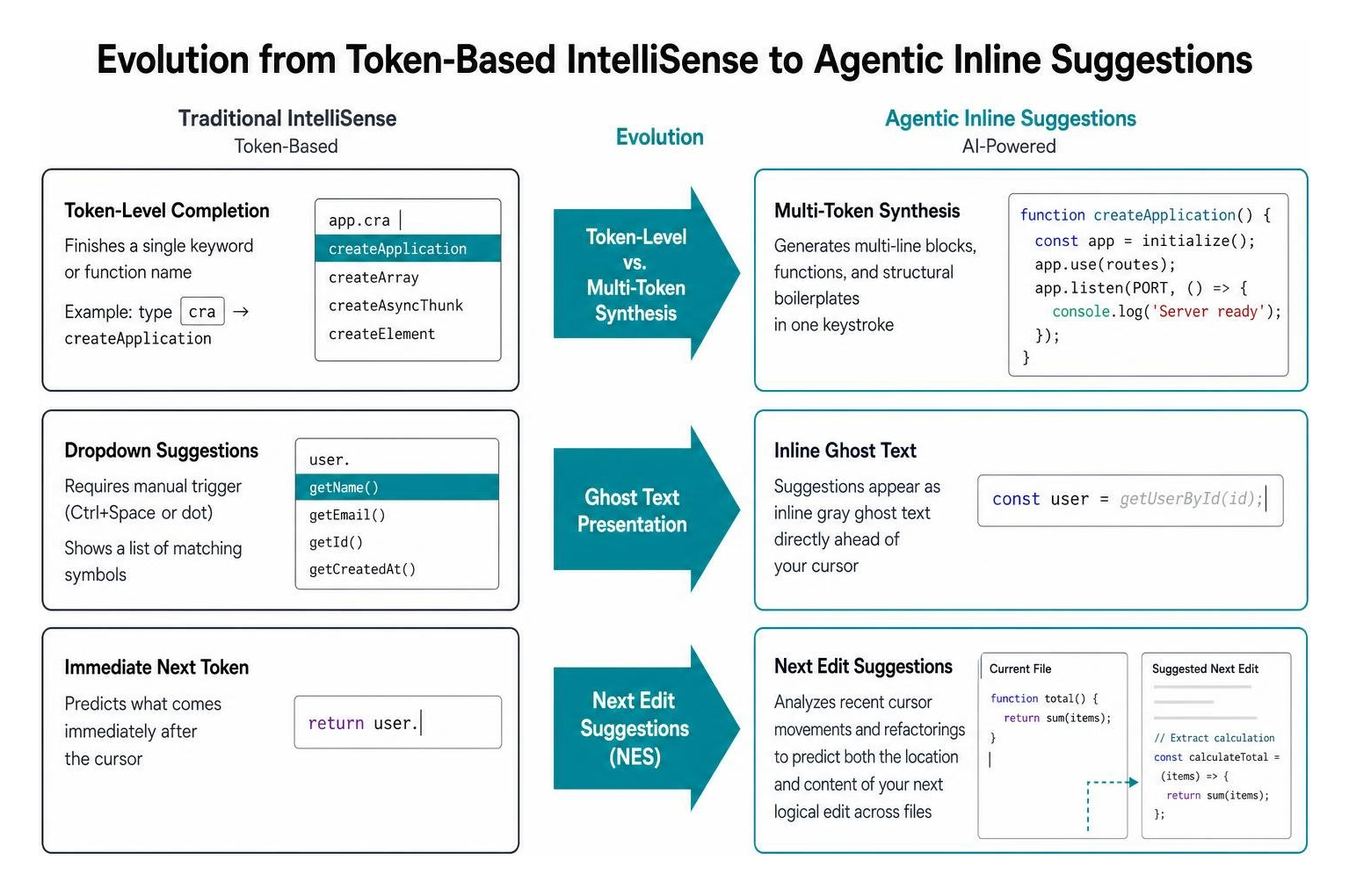
This evolution is best understood across several distinct architectural layers:
- Token-Level vs. Multi-Token Synthesis: While IntelliSense finishes a single keyword or function name (often using CamelCase matching like typing
craforcreateApplication), AI autocomplete generates entire multi-line blocks, function definitions, and structural boilerplates in one keystroke. - Ghost Text Presentation: Instead of requiring you to trigger a dropdown menu via
Ctrl+Spaceor a dot notation, AI suggestions appear as inline gray ghost text directly ahead of your cursor. - Next Edit Suggestions (NES): Modern systems move beyond predicting what comes immediately after the cursor. As detailed in the official guide to Inline suggestions from GitHub Copilot in VS Code, newer engines analyze recent cursor movements and refactorings to predict both the location and content of your next logical edit across files.
- Workspace Contextual Indexing: Rather than relying only on the active document, AI extensions build local and remote semantic vector indices of your project. They inspect directory structures, symbol definitions, and uncommitted edits to provide relevant completions.
Understanding these underlying mechanics helps engineers evaluate the best AI coding tools in 2026 to determine whether deterministic LSP checks or generative completions best suit their architectural workflows.
Top Extensions for AI Autocomplete VS Code
The ecosystem of extensions offering code completion ranges from heavy, cloud-hosted agents to ultra-lightweight client frontends. Choosing the right companion depends on hardware constraints, latency tolerances, and data governance policies.
| Extension | Primary Model & Hosting | Extension Size | Privacy & Data Handling | Best For |
|---|---|---|---|---|
| GitHub Copilot | Cloud (OpenAI / Custom LLMs) | ~33 MB (with Chat) | Cloud telemetry; workspace indexing | Full ecosystem integration, Next Edit Suggestions |
| Visual Studio IntelliCode | Local Machine (Microsoft proprietary) | Lightweight built-in | Fully private; runs locally on device | Offline security, TypeScript/Python whole-line auto-fill |
| fsiovn AI Autocomplete | Cloud via BYOK (Gemini / Cerebras) | ~50 KB | High privacy with personal API key | Minimalist footprint, browser-based vscode.dev |
| Local Custom via FIM | Local (llama.cpp / Ollama) | Variable (3B–7B models) | 100% offline; zero external telemetry | Air-gapped environments, zero data leakage |
Selecting between these options forms the backbone of modern vibe coder tools like Copilot, where raw development velocity must be balanced against operational overhead.
GitHub Copilot and Next Edit Suggestions
GitHub Copilot remains one of the most widely deployed code generation tools in the software industry. Independent research indicates that developers leveraging Copilot report up to 55% faster task completion rates alongside enhanced job satisfaction.
The extension works by maintaining a live connection to cloud-hosted foundational models (such as GPT-4o and specialized smaller completion models). It continually constructs a prompt payload from your active editor, open adjacent tabs, and workspace indices. For remote repositories hosted on GitHub or GitHub Enterprise Cloud, it can utilize remote indexing, while local repositories maintain a semantic index capped at roughly 2,500 files to ensure responsive lookups.
Beyond simple ghost text completions, Copilot’s Next Edit Suggestions (NES) track cross-file patterns. For instance, if you rename a TypeScript interface property from id to uuid in a model file, Copilot anticipates that your API handler and validation schemas require identical modifications, guiding your cursor to the exact lines that need updating. For teams deciding between chat-first workflows and inline ghost text, comparing Claude Code vs Copilot for developers highlights how inline suggestions keep engineers in flow without context-switching to external terminal windows.
Visual Studio IntelliCode
For engineers who cannot transmit intellectual property across third-party networks, the IntelliCode extension on Visual Studio Marketplace offers a powerful, privacy-preserving alternative.
IntelliCode provides whole-line autocompletions and smart starred recommendations right inside the IntelliSense menu. Its fundamental design advantage is local execution:
- Zero Cloud Data Transmission: The whole-line completion model runs locally on your host machine, ensuring proprietary code never leaves your workstation.
- Massive Public Training Base: IntelliCode’s recommendations are distilled from over 100,000 public GitHub repositories with high star counts, surfacing industry-standard coding patterns.
- Deep Language Support: In VS Code, IntelliCode natively accelerates TypeScript, JavaScript, Python, Java, and T-SQL.
- Contextual API Examples: The API Usage Examples feature provides immediate access to real-world invocations across more than 100K APIs, reducing time spent searching external documentation.
Lightweight and BYOK Options
Not every developer wants a 33 MB suite running background node processes, nor does everyone want recurring monthly subscription fees. This has driven the rise of Bring-Your-Own-Key (BYOK) extensions.
A prime example is the fsiovn AI Autocomplete repository on GitHub. With an ultra-compact install size of approximately 50 KB (compared to ~33 MB for GitHub Copilot bundled with Copilot Chat), this extension serves as a bare-metal completion client.
By allowing developers to plug in their own API credentials for ultra-fast inference providers like Cerebras or Google Gemini, it achieves near-instantaneous ghost text completions. Because users provide their own keys, code payloads are governed directly by the user’s personal API agreements rather than shared data pools. Furthermore, its lightweight design allows it to run seamlessly in browser-based development environments like vscode.dev and GitHub Codespaces.
Advanced Configurations: Local Models and Privacy Controls
For regulated industries, air-gapped systems, or teams running strict privacy setups, relying on external cloud APIs is not always an option. VS Code can be tailored to support entirely local inference engines or configured to silence AI features altogether.
Running Local Models for AI Autocomplete VS Code
Running an offline language model inside VS Code requires an engine capable of handling Fill-in-the-Middle (FIM) tasks. Standard chat completion models predict the next token at the end of a prompt, but autocomplete engines must understand both the code before the cursor (prefix) and the code after the cursor (suffix).
The community demand for decoupled autocomplete engines is immense; the feature request for Copilot autocomplete with local custom models backlog issue garnered 133 upvotes on GitHub, prompting Microsoft to triage the capability into its core development backlog.
To run local AI autocomplete effectively today:
- Host a Local Inference Server: Use
llama.cpp, Ollama, or Docker Model Runner exposing an OpenAI-compatible/v1/completionsendpoint. - Select a FIM-Capable Model: Deploy small-parameter models (ranging from 3B to 7B parameters) that fit into consumer GPU VRAM. Highly effective choices include:
- Qwen2.5-Coder (1.5B to 7B)
- Mistral Codestral
- IBM Granite 4.0 Code
- Configure Latency Constraints: Because ghost text must appear within 100–250 milliseconds to feel responsive, quantize local models (e.g., 4-bit or 8-bit GGUF formats) to maximize tokens-per-second generation.
Disabling Built-in AI Features and Telemetry
As AI capabilities become more deeply integrated into the base VS Code editor, developers occasionally require a distraction-free, manual coding environment. Beginning in VS Code version 1.104 (introduced in late 2025), Microsoft added a unified global configuration to disable all native AI integrations.
The Stack Overflow discussion on how to disable AI autocomplete in VS Code has garnered over 38,000 views, demonstrating widespread interest in managing these defaults.
To completely turn off built-in AI behavior:
- Via Settings UI: Navigate to
FiletoPreferencestoSettings(orCmd+,on macOS), search forAI Features, and toggle off Chat: Disable AI Features. - Via
settings.json: Add the following line to your user or workspace configuration file:"chat.disableAIFeatures": true - Fine-Grained Inline Control: To retain chat but turn off intrusive ghost text, adjust your settings per language or set
"editor.inlineSuggest.enabled": false.
Consult the official VS Code AI settings documentation for a comprehensive breakdown of parameters governing code shifting, prompt files, and suggestion delays.
Troubleshooting Missing Inline Suggestions
AI autocomplete tools rely on persistent background processes, websocket channels, and language server daemons. When inline ghost text fails to appear, the root cause is rarely silent model failure—it is usually an environmental, authentication, or editor configuration breakdown.

How to Troubleshoot AI Autocomplete VS Code Glitches
If your ghost text disappears or suggestions freeze mid-keystroke, follow this sequence of diagnostic steps:
- Inspect the Status Bar: Check the bottom right tray of your VS Code window. If using Copilot or a BYOK extension, verify that the status icon is not displaying a warning glyph, struck-through symbol, or paused state.
- Check Global Editor Settings: Ensure that inline suggestions have not been disabled globally or overridden by a specific language plugin. Verify that
"editor.inlineSuggest.enabled": trueis present in yoursettings.json. - Review the Language Server Logs: Open the VS Code Output panel (
Ctrl+Shift+UorCmd+Shift+U) and switch the dropdown menu to your AI extension’s log output. Look for network timeouts, rate-limit warnings (HTTP 429), or missing authentication tokens. - Resolve Extension Conflicts: As reported in the community investigation regarding Copilot and IntelliSense not showing suggestions issue, updates to editor versions (such as v1.105+) can occasionally disrupt the bridge between standard IntelliSense and AI inline providers.
- Clear Cache and Reload: Open the Command Palette (
Ctrl+Shift+PorCmd+Shift+P), runDeveloper: Reload Window, and re-authenticate your extension account if your session token has expired.
Mastering these configuration checks is a vital operational skill when integrating AI-assisted debugging workflows into daily engineering routines.
Frequently Asked Questions about VS Code AI Autocomplete
How does AI autocomplete differ from standard IntelliSense?
Standard IntelliSense is a deterministic symbol-lookup system powered by language compilers and AST parsers; it surfaces known variables, class methods, and static keywords from your workspace. AI autocomplete uses deep learning language models trained on massive codebases to predict new multi-token sequences, whole lines of logic, and cross-file refactoring patterns based on real-time context.
Can I run AI autocomplete in VS Code completely offline?
Yes. You can achieve a completely offline setup by running a local inference server (such as llama.cpp or Ollama) paired with a Fill-in-the-Middle (FIM) compatible model like Qwen2.5-Coder or Mistral Codestral. Alternatively, you can use Visual Studio IntelliCode, whose whole-line prediction model runs entirely on your local CPU without sending telemetry off your device.
How do I globally turn off AI suggestions in VS Code?
To completely disable built-in AI behaviors across VS Code, open your settings.json file and add "chat.disableAIFeatures": true. If you only wish to stop gray ghost text from appearing as you type, set "editor.inlineSuggest.enabled": false in your preferences.
Conclusion
The shift toward AI-powered code completion has permanently transformed how engineers write software. Whether you harness the multi-file contextual awareness of GitHub Copilot, the ironclad local privacy of Visual Studio IntelliCode, the lightweight versatility of BYOK extensions, or fully offline quantized LLMs, selecting the right completion engine fundamentally elevates your daily programming rhythm.
As high-growth startups and async-first companies expand their engineering teams, the demand for developers who master these AI-native workflows continues to accelerate. At RemoteVibeCodingJobs, we curate daily remote engineering roles tailored specifically for developers who build with next-generation tools. If you are ready to apply your technical skills in a modern, autonomous workplace, explore our curated resources on AI coding tools for vibe coding and discover your next remote role today.