
Download Cursor AI for Windows and Get Started
To download Cursor AI for Windows, visit Cursor’s official download page. Choose x64 for most PCs or ARM64 for a Windows device with an ARM processor. Download the user installer for your account, or the system installer if you need a machine-wide setup. Run the downloaded file, follow the prompts, then open Cursor and sign in.
On your first launch, you can import VS Code settings and open a project to try AI-assisted coding.
I’m Di Su, a software engineer with over 10 years of experience building web software. I wrote this guide for developers searching “download cursor ai for windows” who want a safe, straightforward setup.
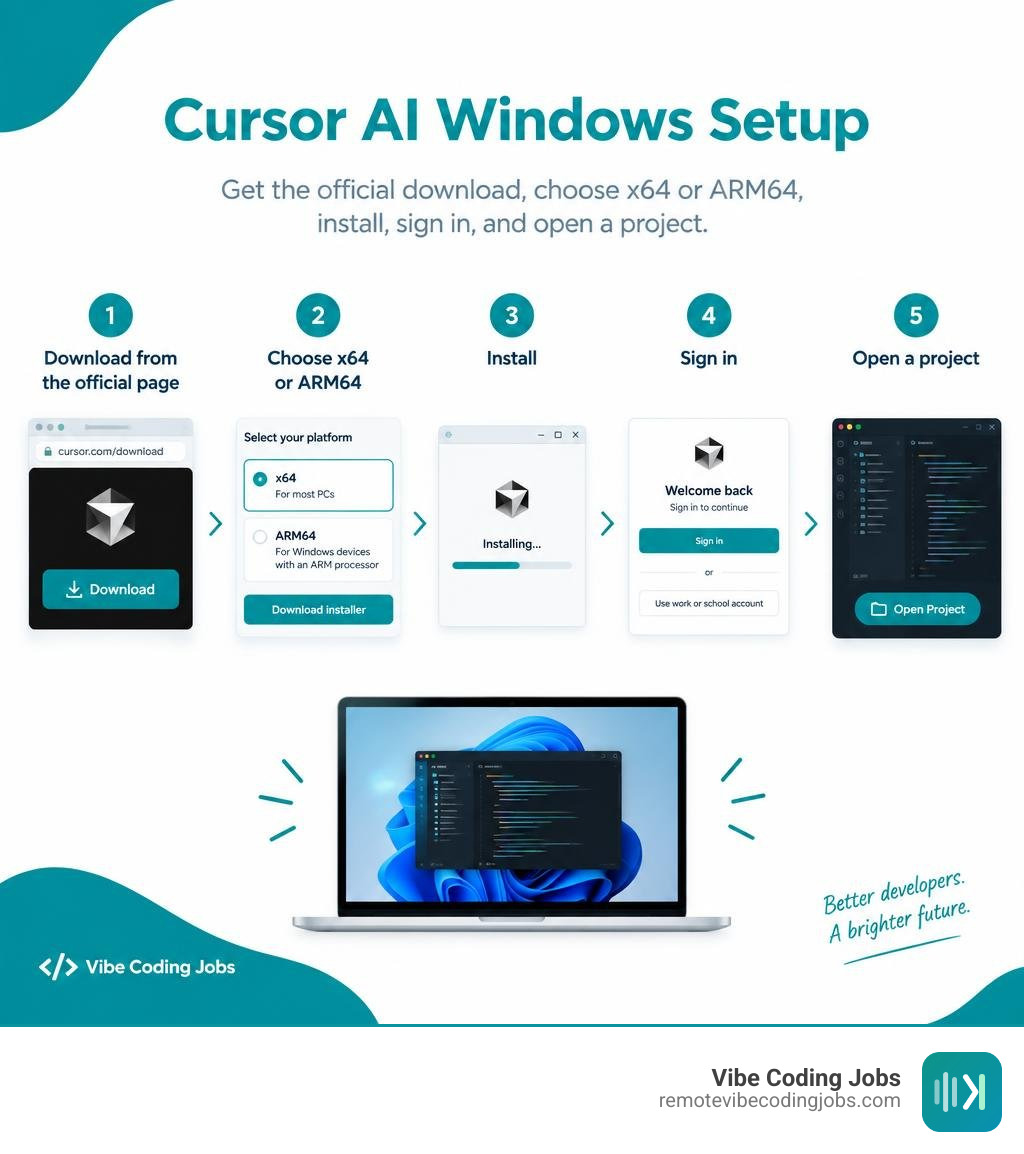
Download cursor ai for windows terms explained:
Official Sources to Download Cursor AI for Windows
When setting up your development environment, getting your binaries from safe, authentic distribution channels protects your machine from compromised packages. We always recommend getting Cursor directly from primary channels.
The primary official destination is the Cursor official installation page, hosted directly via official endpoints like downloads.cursor.com. When navigating to the site on a Windows machine, the platform automatically detects your operating system and offers the proper executable.
For developers who prefer managed app ecosystems with background updates, Cursor is also available directly through the native Microsoft Store on Windows 10 and Windows 11. Using the store package ensures automated background patching without manually running executable installers every release cycle.
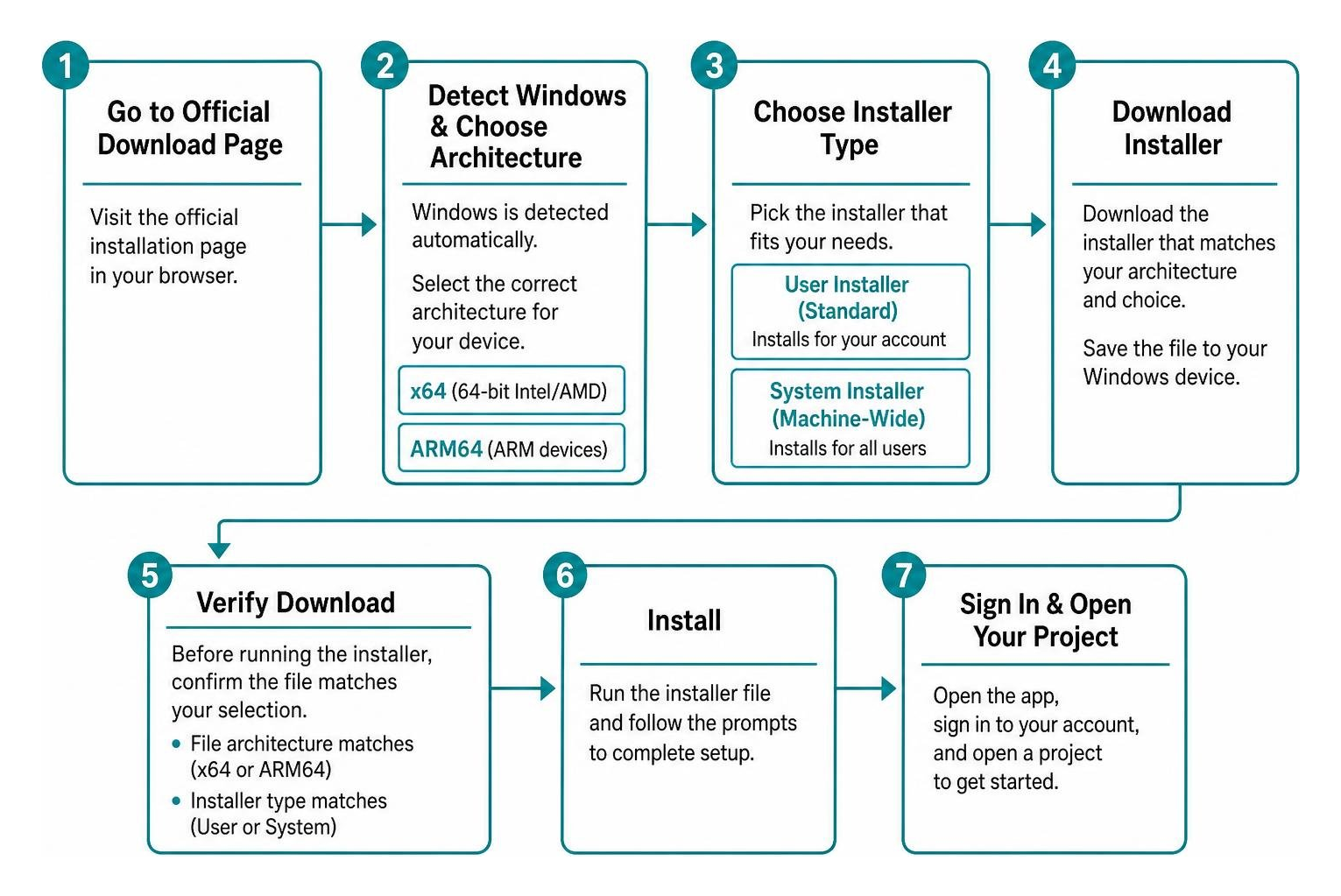
Cursor supports two primary processor architectures on Windows:
- x64 (64-bit Intel/AMD): The standard build for the vast majority of traditional Windows desktop and laptop computers.
- ARM64: A native build compiled specifically for modern ARM-powered hardware, such as machines running Qualcomm Snapdragon X Elite chips or Surface Pro ARM devices. Running the native ARM64 build avoids execution overhead from x64 emulation layers, delivering significantly faster responsiveness and better battery life.
System Requirements Before You Download Cursor AI for Windows
Before starting the download, verify that your Windows machine meets the base specifications. Because Cursor runs an integrated AI index alongside native code-parsing services, allocating adequate system memory ensures smooth, lag-free generation.
| Requirement Metric | User Installer (Standard) | System Installer (Machine-Wide) |
|---|---|---|
| Operating System | Windows 10 / 11 (64-bit) | Windows 10 / 11 (64-bit) or Windows Server |
| Hardware Architecture | x64 or ARM64 | x64 or ARM64 |
| Administrative Privileges | Not Required (Installs per user) | Required (UAC Prompt / Local Admin) |
| Minimum RAM | 4 GB | 4 GB |
| Recommended RAM | 16 GB+ (for large repos & indexing) | 16 GB+ |
| Storage Footprint | ~500 MB base (~1 GB active workspace) | ~500 MB base (Shared application path) |
| Installation Directory | %LOCALAPPDATA%\Programs\cursor |
C:\Program Files\Cursor |
User Installer vs. System Installer for Windows
Cursor provides two executable variants for Windows environments:
- User Installer (
CursorUserSetup-*.exe): This is the default package recommended for individual developers. It writes application binaries directly to your local user directory (%LOCALAPPDATA%\Programs\cursor). It requires zero elevated administrative permissions, making it ideal for restricted corporate laptops or standard user profiles. - System Installer (
CursorSetup-*.exe): This package is built for system administrators managing multi-user workstations or shared virtual desktop infrastructure. It installs Cursor globally intoC:\Program Files\Cursor, making the editor available across all user profiles registered on that Windows machine. Running this installer prompts a User Account Control (UAC) dialog requiring administrator credentials.
How to Install and Configure Cursor AI on Windows
Setting up Cursor gives you immediate access to essential vibe coding tools directly inside your native editor environment. The entire onboarding process takes roughly five minutes.
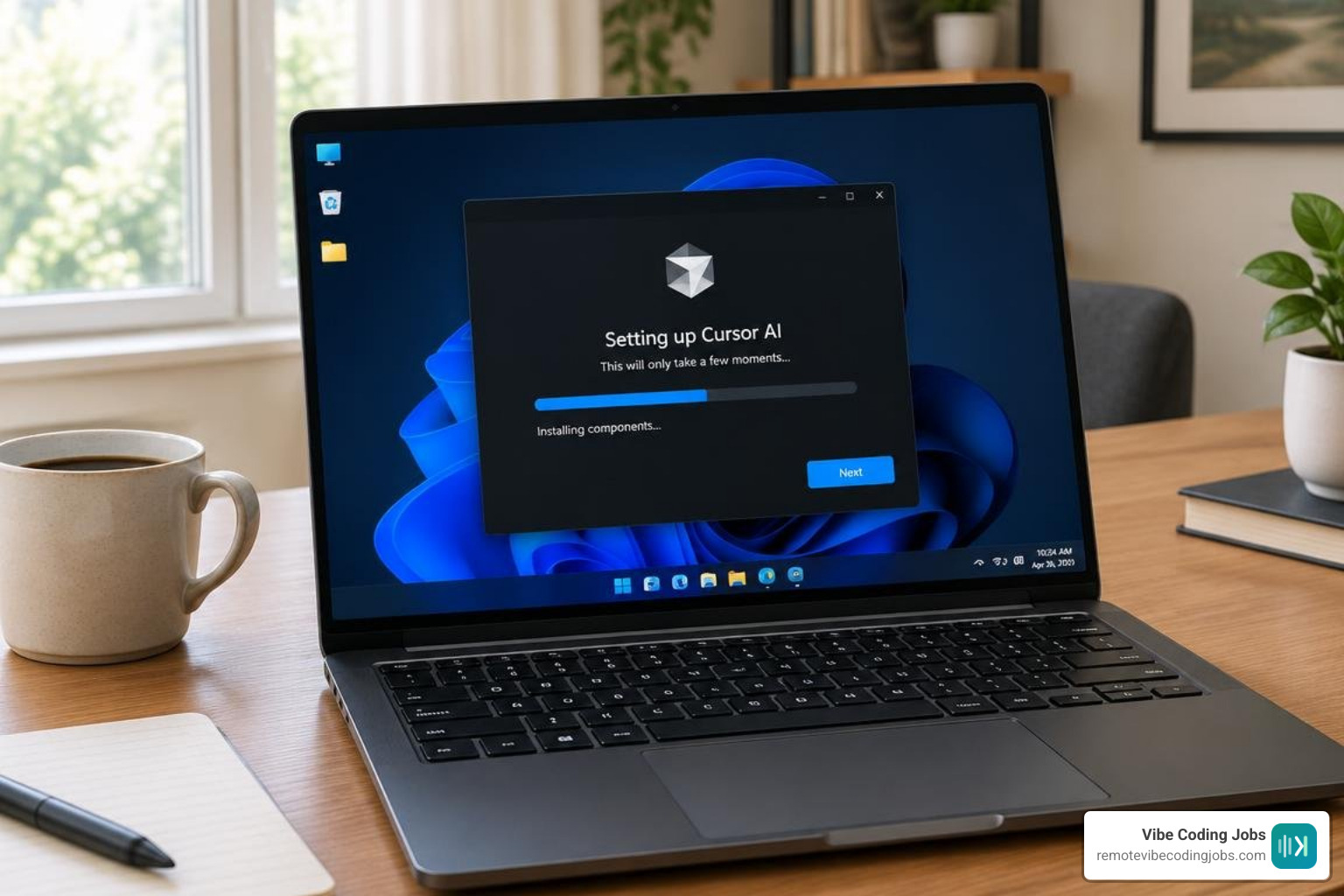
Step-by-Step Guide to Download Cursor AI for Windows and Complete Setup
- Obtain the Executable: Download either the x64 or ARM64 installer variant from the official distribution source.
- Execute the Setup Wizard: Double-click the downloaded
.exefile. If Windows SmartScreen appears with an unrecognized application prompt, select More info and click Run anyway. - Accept Agreement & Choose Components: Review the software license terms, choose whether you want desktop and Start Menu shortcuts created, and enable the context menu option (“Open with Cursor”) for convenient folder access from Windows File Explorer.
- Complete Installation: Click Install. The setup program extracts the application assets and finishes in a few moments.
- Initial Launch & Sign In: Launch Cursor from your Start menu. Sign in using your GitHub, Google, or Cursor account to initialize your AI completion access.
- Migrate Settings & Extensions: On the first launch screen, Cursor will offer to import your VS Code keybindings, themes, and extensions automatically. Selecting import transfers your daily plugins—such as ESLint, Prettier, and GitLens—without manual reinstallation.
Managing Updates and Downgrading to Older Versions
By default, Cursor performs automated background checks for newer versions and applies them seamlessly upon relaunching the editor.
If an upstream update introduces regressions with custom extensions or workflows, you can roll back to previous releases. The community-maintained Cursor archive repository indexes historic releases, providing links directly to official downloads.cursor.com binaries across major releases.
To safely rollback versions:
- Back up your active project workspaces and local settings files.
- Uninstall the current build via Windows Settings.
- Download the specific legacy installer version you need from the archive.
- Run the installer and temporarily disable automated background updates in the Cursor settings menu.
Troubleshooting Common Windows Installation Issues
While the Windows setup is typically frictionless, specific system configurations can trigger installation warnings:
- Windows Defender SmartScreen Blocks: Because newer Cursor releases and preview builds ship frequently, the Windows SmartScreen reputation filter may occasionally flag new hashes. Click More info followed by Run anyway to proceed.
- Corrupted Installation State: If an update cycle stalls or crashes, clear the cached configuration files. Open Windows File Explorer and navigate to
%APPDATA%\Cursorand%LOCALAPPDATA%\Programs\cursor. Delete these folders before running a fresh installer. - Antivirus False Positives: Certain strict endpoint protection software may flag the local indexing agent. Add an exclusion rule for the Cursor install directory in your antivirus dashboard.
- Architecture Mismatch: Running an x64 executable on a native ARM64 device can cause degraded generation speed and higher memory consumption. Confirm your system architecture via Settings > System > About before downloading your build.
If you are evaluating different editor models, understanding how dedicated interfaces perform across different systems is crucial. You can read our detailed breakdown on vibe coding IDEs to compare desktop applications against terminal-first alternatives.
Maximizing Your Workflow After Installing Cursor AI
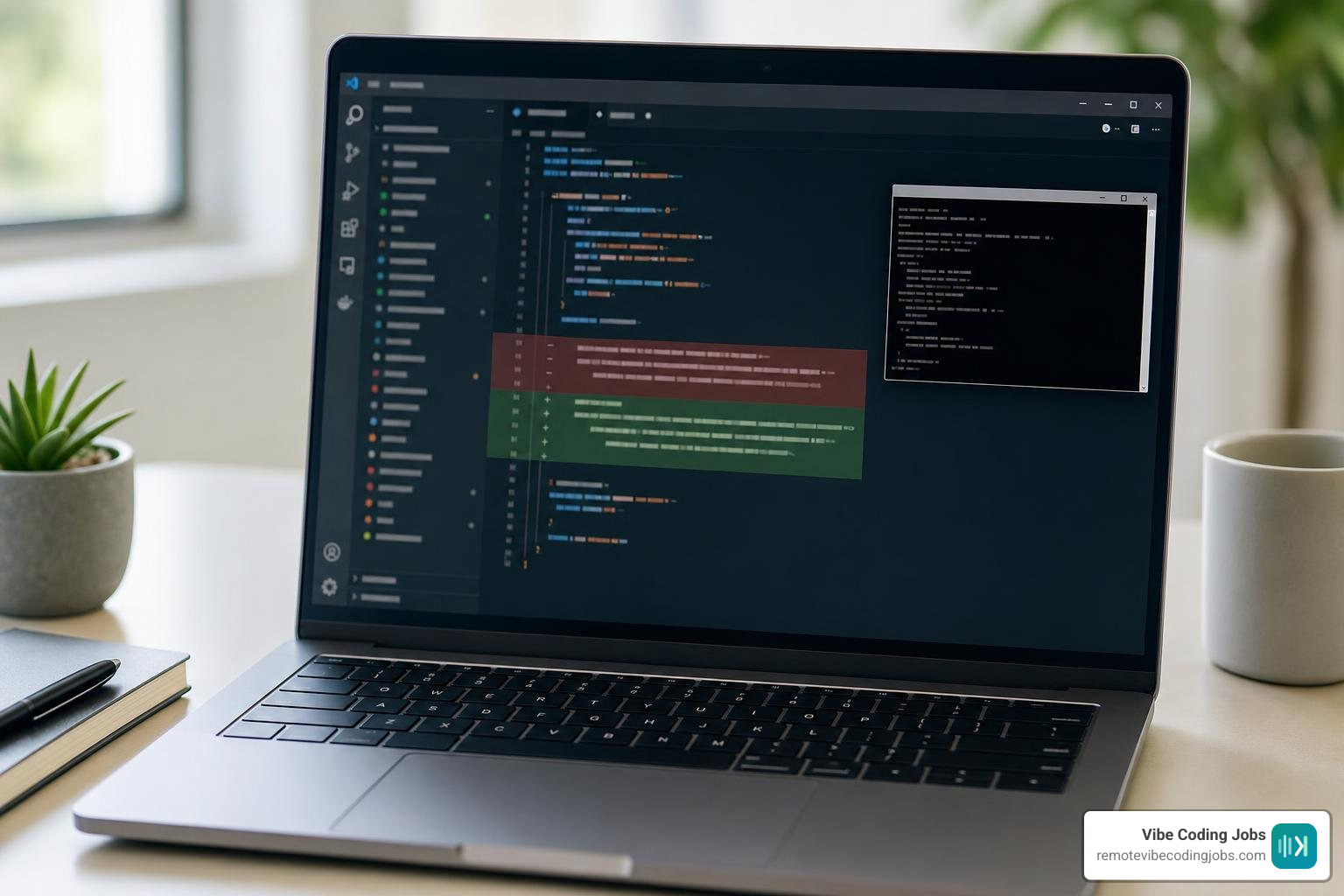
Once installed, Cursor turns everyday programming into a collaborative flow. Understanding primary hotkeys and features lets you leverage your full vibe coding tool suite right away:
- Inline Generation (
Ctrl + K): Highlight any block of code or click an empty line, pressCtrl + K, and enter instructions in plain English. Cursor generates changes as clear inline diffs that you can accept (Ctrl + Enter) or reject (Escape). - AI Chat Sidebar (
Ctrl + L): Open the interactive chat panel to ask questions about your codebase, brainstorm logic implementations, or generate tests. - Codebase Indexing: Navigate to settings and let Cursor build a local vector index of your project files. This allows the model to reference cross-file types, classes, and logic across your repository automatically.
- Project Rules (
.cursorrules): Create a.cursorrulesfile in the root of your project to instruct the AI on specific coding styles, framework conventions, and testing requirements.
Mastering these integrated editor mechanics makes a noticeable difference for modern cursor developer workflows, allowing you to focus on system design while the AI handles repetitive syntax.
Frequently Asked Questions About Cursor AI on Windows
Is Cursor AI free to download and use on Windows?
Yes. The installer is free to download. Cursor includes a free Hobby tier that offers access to standard AI code completions, basic chat interactions, and trial access to advanced models. Higher usage quotas and unlimited frontier model requests are available on paid tiers.
Can I run Cursor AI and VS Code side by side on Windows?
Yes. Cursor runs as a completely independent application with its own separate directories, registry entries, and settings paths. You can run both editors side by side without process conflicts or corrupted configurations.
How do I cleanly uninstall Cursor AI from Windows?
Open Windows Settings > Apps > Installed apps, locate Cursor, and select Uninstall. To completely wipe all local configurations and caches, manually delete the following directories:
%APPDATA%\Cursor%LOCALAPPDATA%\Programs\cursor%USERPROFILE%\.cursor
Conclusion
Installing Cursor AI on Windows provides a fast, integrated path to AI-accelerated development. With full support for both x64 and ARM64 architectures, one-click VS Code migration, and native inline prompting tools, the editor removes friction from daily programming tasks.
If you enjoy working with AI-first tools and want to build modern software with forward-thinking teams, check out RemoteVibeCodingJobs to explore remote AI engineer jobs and find async roles tailored to your stack.