
Start IntelliJ Pair Programming Without Changing Your Workflow
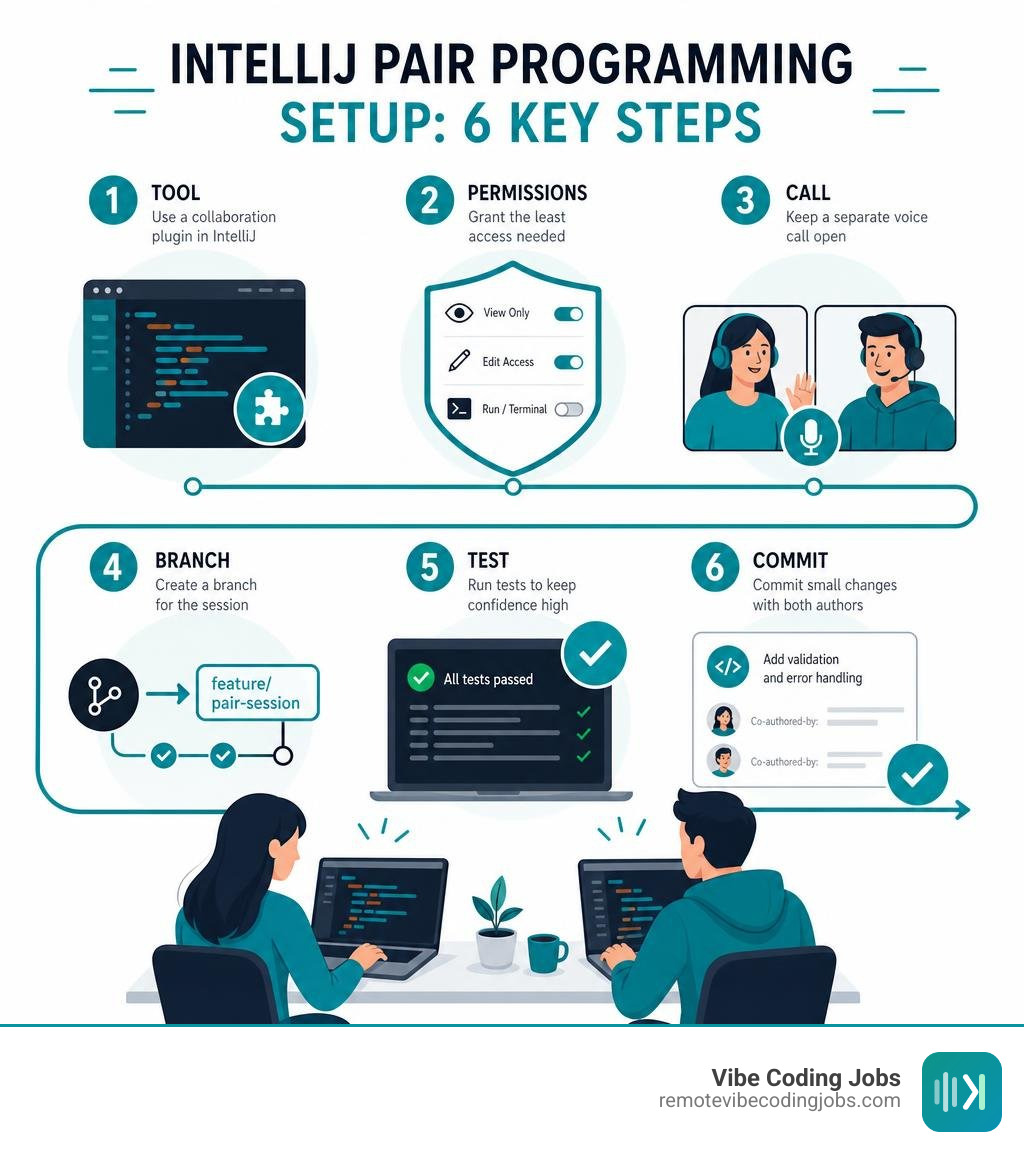
IntelliJ pair programming lets two or more developers work on the same codebase in real time. For a reliable session, choose a collaboration tool, create a Git branch first, grant the least access needed, and keep a separate voice call open for fast discussion.
- Install a supported IntelliJ collaboration plugin, such as Code With Me while it remains available, or an alternative such as CodeTogether.
- Start a session from the host IDE and send the invite link only to approved teammates.
- Give guests view-only access for reviews, edit access for pairing, and terminal/run access only when it is essential.
- Work in short blocks: agree on the task, rotate the driver, run tests, and commit small changes with both authors credited.
IntelliJ IDEA remains a major part of JVM development, with an estimated 62% share among JVM developers. That makes smooth remote pairing valuable for debugging a tricky Gradle build, reviewing a pull request live, or helping a new teammate understand an unfamiliar service.
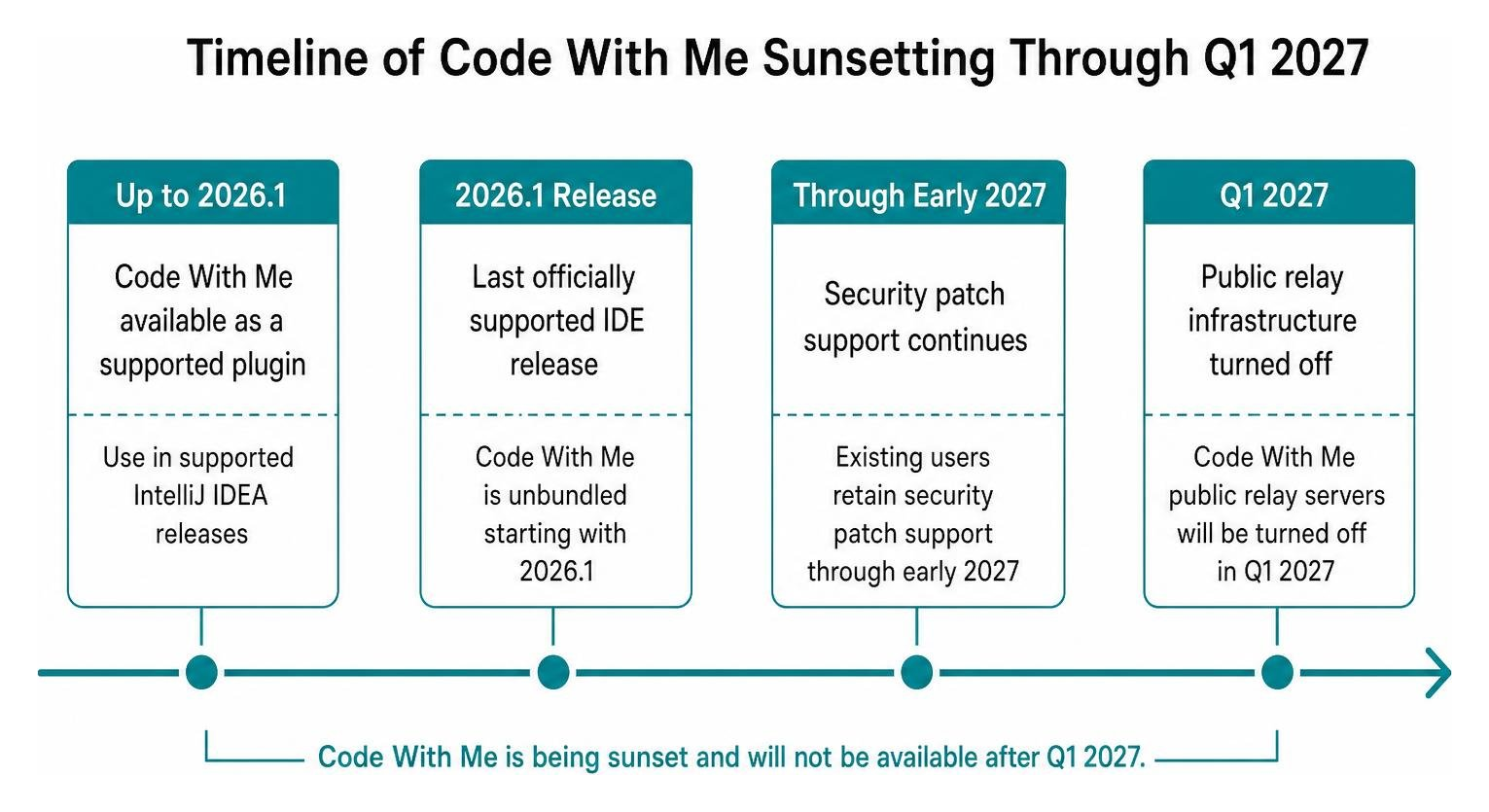
There is one important change: JetBrains Code With Me is being sunset. IntelliJ IDEA 2026.1 is its last officially supported IDE release, and JetBrains plans to turn off the public relay infrastructure in Q1 2027. Teams that depend on real-time editing should begin testing alternatives now, rather than discovering a workflow gap later.
I’m Dominic Zijlstra, a technologist, former data scientist and DevOps engineer, and founder who has built systems for distributed teams. I approach IntelliJ pair programming as a practical workflow problem: reduce friction, protect access, and help people ship better code together.
Essential intellij pair programming terms:
The Current State of IntelliJ Pair Programming and Code With Me
For years, real-time collaboration inside the JetBrains ecosystem centered on Code With Me. With over 1.37 million downloads on the JetBrains Marketplace, the plugin proved that developers wanted native collaborative editing without jumping through remote desktop hoops.
However, the tooling ecosystem is shifting rapidly. According to the JetBrains announcement on sunsetting Code With Me, the plugin is unbundled starting with the IntelliJ IDEA 2026.1 release. While existing users retain security patch support through early 2027, the public relay servers will be turned off in Q1 2027.
This retirement reflects broader trends across the industry, particularly the evolution of AI coding tools. Engineering teams increasingly blend synchronous collaboration sessions with asynchronous agentic workflows, altering how developers approach live editing sessions.
Why Code With Me Is Transitioning in 2026
JetBrains’ strategic shift away from multi-cursor peer collaboration toward dedicated remote development explains why Code With Me is sunsetting. Maintaining low-latency, real-time document synchronization alongside complex IDE indexes requires extensive overhead.
Instead of routing multiple transient users into a single desktop IDE, JetBrains is focusing its engineering resources on JetBrains Gateway and backend-driven remote development architectures. This allows developers to run the IDE engine on cloud instances or central servers, offering robust compute power while offloading local laptop constraints.
Setting Up Native IntelliJ Pair Programming Sessions
If your team is running IntelliJ IDEA 2026.1 or an earlier compatible version, you can still use Code With Me during this transition window.

To initiate a native pairing session, follow these steps based on the JetBrains official Code With Me documentation:
- Open Settings (or Preferences on macOS), navigate to Plugins, search the Marketplace for Code With Me, and complete the installation.
- Click the collaboration widget in the main IntelliJ toolbar and select Start Session….
- Configure your permissions: choose between Read-only, Edit files, or Full access presets, or build a custom permissions profile.
- Copy the generated invitation link and send it directly to your pairing partner.
- When the guest clicks the link, review their incoming join request in your IDE and click Accept.
Guests do not even need a complete IntelliJ IDEA installation; their browser will download a lightweight JetBrains Client runtime automatically. The free Community plan allows unlimited 30-minute sessions for up to 3 guests, while Premium and Enterprise tiers accommodate up to 50 and 100 participants respectively.
Top Alternatives for Real-Time Collaboration in IntelliJ
With native tools entering maintenance mode, modern teams are adopting diverse tools for collaborative coding. Depending on whether your priority is cross-editor pairing, OS-level screen sharing, or lightweight open-source plugins, several distinct solutions stand out across the remote pair programming IDE landscape in 2026.
| Tool | Core Mechanism | Cross-IDE Support | Built-in Audio/Video | Best For |
|---|---|---|---|---|
| Code With Me | JetBrains Client Relay | JetBrains IDEs Only | Yes (Browser/Client) | Legacy JetBrains workflows (until Q1 2027) |
| CodeTogether | Browser & Plugin AST Sync | IntelliJ, VS Code, Eclipse | External tool recommended | Heterogeneous engineering teams |
| CoScreen | OS-Level Canvas & Cursor Sharing | Universal (Any Editor/Tool) | Yes (Low-latency audio/video) | Full-stack pairing across IDE, DB, and terminals |
| InstantPear | WebRTC + OS Overlay | IntelliJ IDEA | No (Visual overlay only) | Self-hosted, privacy-conscious teams |
| Zed | Native CRDT Engine | Zed Only | Yes (Integrated audio/screenshare) | Ultra-low latency, greenfield projects |
CodeTogether and CoScreen: Multi-IDE and Screen-Level Pairing
Not every engineering team standardizes on IntelliJ IDEA alone. Full-stack teams frequently pair backend JVM engineers with frontend developers working in VS Code.
CodeTogether bridges this divide by providing real-time code sharing across IntelliJ, VS Code, and Eclipse. Guests can participate either through their local editor plugin or straight from a standard web browser without installing dependencies.
When pairing requires stepping outside the IDE—such as inspecting cloud dashboards, Docker containers, or API clients—CoScreen provides simultaneous multi-user cursors and screen sharing across the entire operating system. These AI-powered remote pair programming tools eliminate the friction of constantly handing off screenshare controls.
Open-Source Solutions: InstantPear and Git Pair
For teams requiring strict internal data control, open-source utilities provide reliable alternatives to commercial SaaS relays.
The InstantPear IntelliJ plugin on GitHub is an experimental tool designed for mob and pair programming. It uses WebRTC to project guest annotations and ghost cursors directly onto the host’s screen as a native OS overlay. If your corporate firewall blocks direct peer-to-peer ICE candidates, you can route traffic by spinning up an internal coturn TURN server on UDP port 3478.
Meanwhile, if you prefer alternating commits via Git rather than concurrent typing, the RoboPlugins git-pair repository helps track co-authors directly within the IntelliJ status bar, ensuring proper commit attribution without manual terminal configuration.
Step-by-Step Workflow: How to Pair Program in IntelliJ IDEA
A smooth pairing session requires clear roles, disciplined communication, and secure system access.

Pair programming fundamentally combines two roles: the Driver (who manages active typing and syntax mechanics) and the Navigator (who reviews logic, anticipates edge cases, and guides design).
Using this structured loop keeps distributed engineers aligned while boosting team efficiency with remote collaboration tools.
Configuring Permissions and Security Controls
When opening a collaborative session, always apply the principle of least privilege:
- File System Access: Grant edit access strictly to the active project workspace. Avoid granting write permissions to hidden directories or environment files containing production secrets.
- Terminal Execution: Shared terminals carry significant security risks. Restrict terminal access to read-only unless you explicitly need your partner to trigger local compilation tasks or run unit test suites.
- Execution & Run Configurations: Allow guests to trigger tests, but review custom run arguments before execution to prevent accidental environment variable leaks.
Integrating AI Assistants for Next-Generation IntelliJ Pair Programming
AI pair programming has evolved from simple autocomplete suggestions into interactive agentic workflows. By integrating GitHub Copilot into IntelliJ IDEA, remote pairs gain a virtual “third contributor.”
Pairs can use inline chat prompts (Cmd+I / Ctrl+I) to quickly generate unit test templates, explain legacy regular expressions, or scaffold boilerplate code. To see how these systems behave under the hood, explore how AI coding agents work in 2026.
Combining real-time human pairing with vibe coding tools and Copilot workflows allows engineers to stay focused on architectural decisions while AI handles repetitive implementation details.
Best Practices to Avoid Common Remote Pairing Pitfalls
Remote collaboration can quickly lead to cognitive fatigue if teams neglect communication protocols and connection stability.
- Rely on Dedicated Audio Channels: While some IDE plugins bundle voice features, third-party communication tools like Slack Huddles, Discord, or Microsoft Teams offer superior audio fidelity and jitter buffers.
- Keep Sessions Time-Boxed: Synchronous pairing demands intense focus. Structure sessions into 25-to-45-minute blocks followed by brief breaks to maintain energy.
- Commit Early and Often: Do not wait for the end of the day to merge changes. Push small, verified commits every time a unit test passes.
- Harmonize Your Environment: For deeper stack cohesion, review our guide on integrating AI tools into remote developer stacks.
Managing Bandwidth, Latency, and Relay Connections
Network latency can turn multi-cursor editing into a frustrating experience. Follow these technical adjustments to keep your connection responsive:
- Configure mDNS Properly: If you use browser-based WebRTC tools on local corporate subnets, ensure browser mDNS address obfuscation is disabled in internal test environments to prevent ICE negotiation timeouts.
- Deploy Dedicated TURN Relays: For distributed teams behind corporate symmetric NATs, host a lightweight
coturnrelay on a low-latency cloud server. - Throttle IDE Index Transfers: Ensure the host machine is finished indexing large Maven or Gradle dependencies before launching a pairing session, freeing up CPU cycles for the synchronization daemon.
IntelliJ vs. VS Code Live Share and Zed
Every major development environment handles real-time collaboration with different architectural trade-offs:
- IntelliJ IDEA: Provides deep semantic code intelligence, robust refactoring, and full AST-aware completions, though it requires heavier local memory usage.
- VS Code Live Share: A pioneer in remote pair programming, though it is currently in maintenance mode with limited active feature development.
- Zed: Built around a high-performance Conflict-free Replicated Data Type (CRDT) engine with built-in voice calling, offering near-zero latency at the expense of a smaller plugin ecosystem.
Frequently Asked Questions About IntelliJ Collaboration
What is the most reliable alternative to Code With Me in IntelliJ?
For mixed-editor environments, CodeTogether is the most versatile plugin replacement, allowing teammates on VS Code or browsers to edit within IntelliJ sessions. If your workflow requires switching between databases and terminal consoles, CoScreen offers seamless OS-level multi-user collaboration.
Is there a completely free option for pair programming in IntelliJ IDEA?
Yes. The Code With Me Community edition provides unlimited 30-minute collaborative sessions for up to three guests. Additionally, open-source plugins like InstantPear provide self-hosted WebRTC pairing without ongoing subscription fees.
Can participants join an IntelliJ session without having IntelliJ installed?
Yes. Code With Me guests automatically download a lightweight JetBrains Client application when opening an invite link, without needing a full IDE installation or license. Similarly, tools like CodeTogether let participants join directly through any modern web browser.
Conclusion
Remote pair programming in IntelliJ IDEA continues to evolve. While JetBrains transitions Code With Me toward cloud-backed remote development infrastructure ahead of its 2027 sunset, teams have access to powerful alternatives like CodeTogether, CoScreen, and open-source WebRTC tools.
By combining clear role division, secure access permissions, and AI assistance, distributed teams can build high-velocity development workflows from anywhere in the world.
Ready to find forward-thinking engineering teams that embrace modern collaborative workflows? We curate daily listings for high-leverage software engineers at async-first companies. Take the next step in your career and explore top AI coding tools and remote opportunities to find your ideal remote development role today.